Skip to content
English
  • There are no suggestions because the search field is empty.

Multi-Factor Authorisation (MFA) User Guide

This process walks you through logging in to Shelter Buddy with MFA enabled for your site. 

To log in to Shelter Buddy, you will need to sign in using your Shelter Buddy User Name and Password.
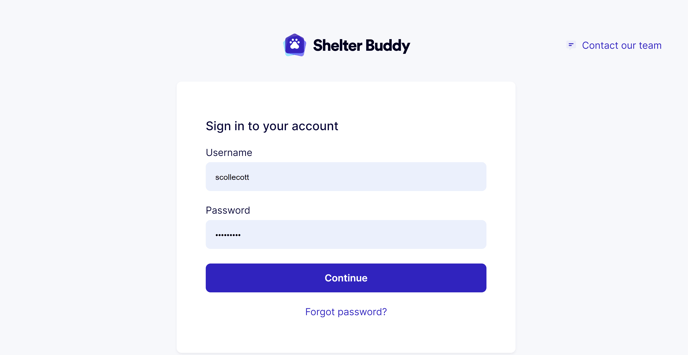
1-2

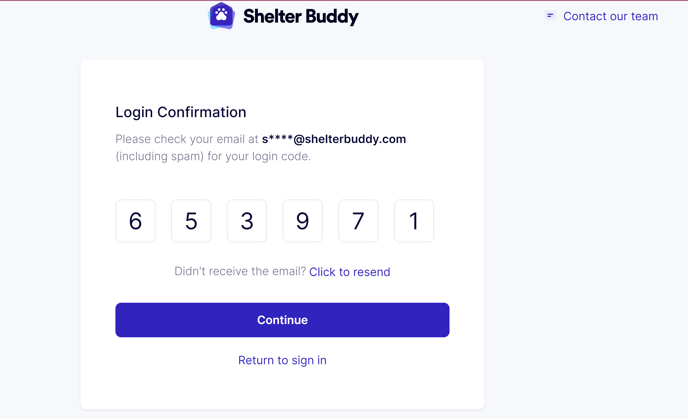
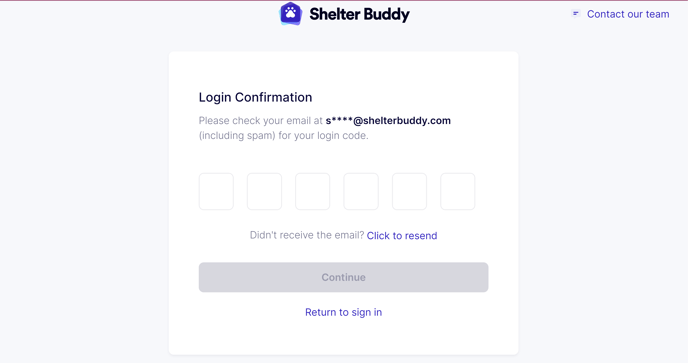
When your initial login has been successful, you will be presented with the Login Confirmation Page. The page will advise the email address that has been used to send your one-time password. You will have minutes to retrieve your numerical password and input it in the boxes on the Login Confirmation Page.

2-2

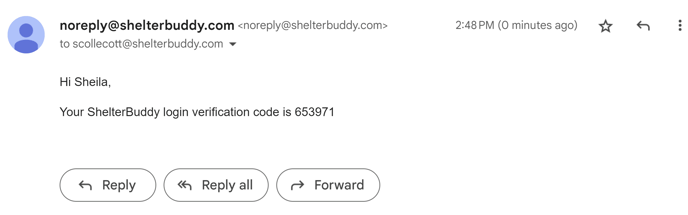
If you do not receive an email from noreply@shelterbuddy.com, please check your spam folder. Your verification code will be in the body of the email.

3-3

After you input each number, it will automatically tab to the next box. If you make a mistake, put your cursor in the incorrect box and hit the backspace button to correct the value. Once you have entered all six values, you will note that the continue button becomes dark blue and is now active.

4

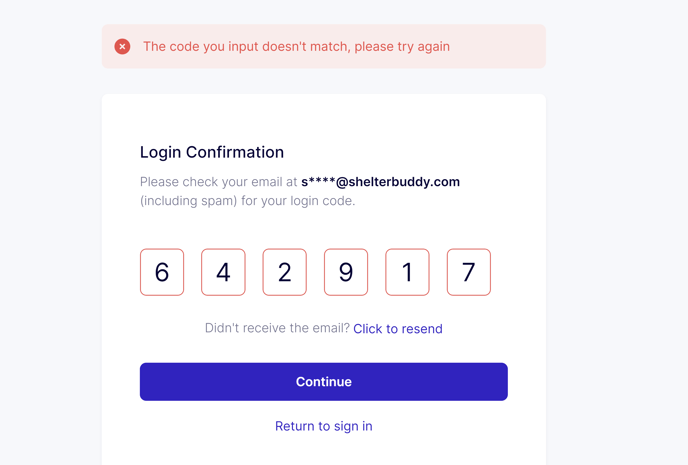
The system is not checking as you type for an incorrect entry. Once you enter your code and select Continue, if you have entered an incorrect code, you will receive a warning stating “The code you input doesn’t match, please try again.”
5

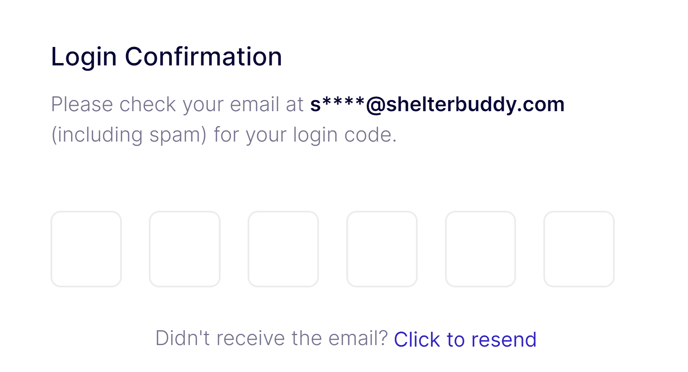
You can also request another code to be resent by using the Click to resend link.
6