![shelterbuddy_logo.jpeg]](https://21631173.hs-sites.com/hs-fs/hubfs/shelterbuddy_logo.jpeg?width=65&height=65&name=shelterbuddy_logo.jpeg)
This process allows different adoption fees to be added to a drop-down list on the Edit Animal Details page, Internal Transfer/Bulk Transfer page or via the Adoption Processing page, each containing automatic allocation to specific GL Codes or cost centres. This eliminates the need for this process to be done manually with each adoption, lessens the possibility of error and cuts down on the time it takes to process an adoption.
Only users with administrative access can process this function.
- Click on the Administration link in the nav bar menu at the top of the screen.
- Click on the Adoption Administration link.
- Click on the Adoption Fees link.

- Select the Region from the drop-down or leave it at ALL.
- Select the Animal Type from the drop-down.
- Click [Search].
This will display any fees already set for that region/type combination and activate the [Add Fee Group] button. 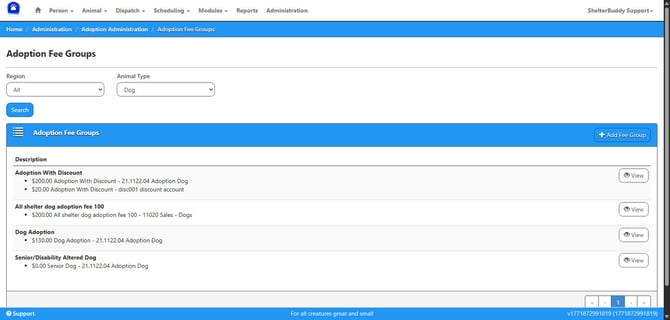
To Add a group:
- Ensure the correct Region and Animal Type is selected from the drop-downs
- Click [+Add Fee Group]
- A new page will display
- Description: Enter the name of the fee group. EX: $125, Fee Waived or $100 - Cockatoo. *Note: the actual monetary value does not appear in the drop-down boxes when adoption fees are selected on the Animal Details page or via the Adoption process, so if users need to see them, remember to include them in the Fee Description.
- Minimum Age in Days: if a number is entered, the animal must be at least that age (and the age must be compatible with the Type) for the fee to apply. Calculate the number of days that represent that age and enter the number here. E.g. if the fee is to apply to dogs aged 7 years and up, you would enter 2557 as 2557 days equate to 7 years. Leave blank if there is no minimum age for the fee.
- Maximum Age in Days: if a number is entered, animals must not exceed this age for the fee to apply. E.g. if the fee is to apply only to juveniles aged between 6 - 12 months, the maximum age would be 365. If there is no cut-off for the fee group (e.g. for seniors aged 7 years and older) this can be left blank, even if the minimum age group is applied.
- If your site is set to show options for license/registration included with Adoption, select from the drop-down and add the # as required.
- Select “none” for no registration fee, "year" for an annual registration or "lifetime" for a lifetime registration.
- Click SAVE.
- The page will reload as Adoption Fee Group Details. From here, you can edit, delete, or make changes. *Right now, this fee has no price linked to it.*
To Add a Price to a fee group:
- Click [+Add Product]
- A modal will open.
- Place your cursor in the field labelled Product and enter the name of the linked product (e.g. the same as the fee group)
- If the item already exists in product's services, it will offer choices to select below the text box.

- If the item does not already exist, it will offer an option to create one.

- If the item already exists in product's services, it will offer choices to select below the text box.
- Once an option is selected, click [Save]
- Products & Services will load.
- Enter the required information about Product Codes, Product Groups, and select the region(s) the Fee Group is available to as desired, then click [Update Product]
- Select the Physical Location you'd like to set a fee for and click [Set Product Price]
- The Adoption process will be ticked by default.
- Scroll down to Cost Price and add the fee, remembering to adjust for taxes as required (e.g. if you charge 10%GST and the total fee including GST is $100, then add the Cost Price at $90)
- Set the default GL Code
- Select preferred tax type from Display Price Taxes and/or Post Display Price Taxes
- Click [Cascade to Price Levels]
- Click Update Product
- The page will return to Adoption Fee Group Details
- It will now display the Display Price and Product Name, with [Edit] and [Remove] buttons at the end of the row. The [Delete] button under the Adoption Fee Group Details will be greyed out.

- Use the appropriate [Edit] button to edit any area of the new Fee group or linked fee.
To Delete a Fee Group
- First click [Remove] against the Product.
- Click [Delete] to confirm
- This will activate the [Delete] button beneath the Adoption Fee Group Details.
- Click the [Delete] button
- When the modal opens, click [Delete] to confirm.
- The page will return to the Adoption Fee Groups landing page.