![shelterbuddy_logo.jpeg]](https://21631173.hs-sites.com/hs-fs/hubfs/shelterbuddy_logo.jpeg?width=65&height=65&name=shelterbuddy_logo.jpeg)
Access to Admin menus required.
From any page:
- In the nav bar at the top of the page, click Modules > Administration
- Search for Edit Drop Down Lists and click the link to load the page
- In the "quick entry" section at the top of the Edit Drop Down Lists menu, find Bite - Quarantine Length and click Edit beside it

- Existing options will load
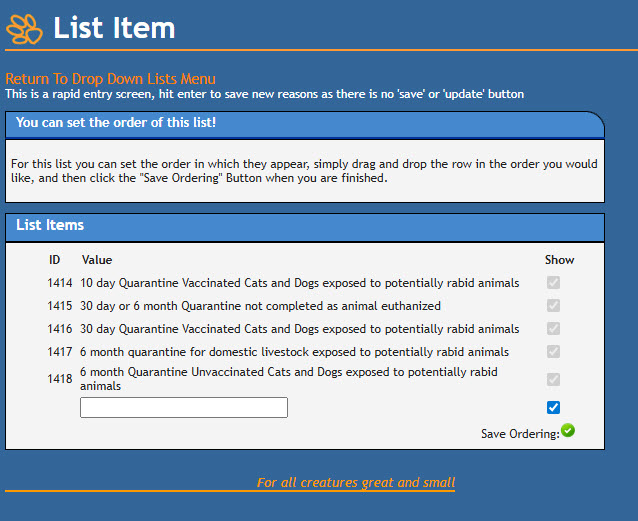
- Type the option you wish to Add into the text box. Simply hit the Enter key to add it to the list.
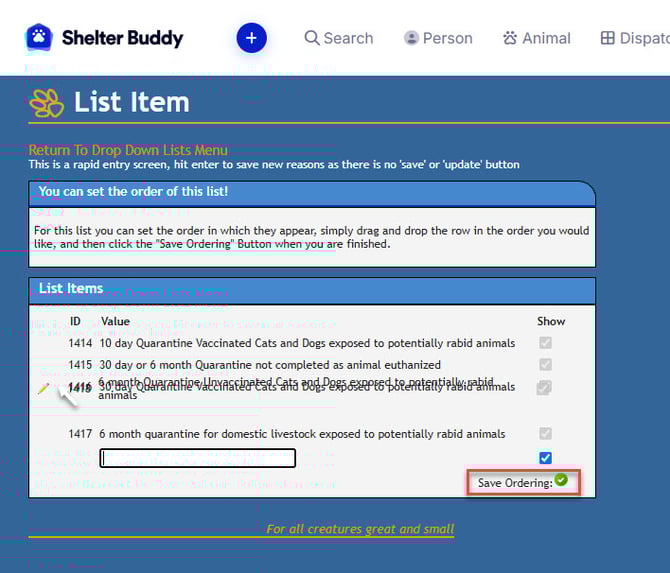
- To Edit an option, hover your mouse over the required option until a little icon in the shape of a pencil appears on the left. Click on the pencil icon.
- The option will appear in a text box. Click in the text box to put your cursor in there and make whatever changes are required.
- To Save your changes, click on the green tick icon on the right-hand side.
- To Disregard your changes, click on the red cross icon on the right-hand side.
- You can change the order items appear by clicking the row near the pencil icon, then drag-and-drop the item to where you want it to be. Click the green checkmark for Save Ordering to save the change.
- Note: if you edit an existing item, these changes will retroactively apply to any files that already have this item selected
- To make an option Inactive so it does not show in the drop-down and cannot be selected:
- hover your mouse over the required option and click on the pencil icon
- click on the box in the column marked Show to remove the tick mark
- Click on the green tick icon to save your changes.
- This option will now display only on files that had it added historically, it will not show in the drop-down box and cannot be applied moving forward unless reactivated.
- To Reactivate a hidden option:
- Hover your mouse over the required option and click on the pencil icon
- Click on the box in the column marked Show so the tick mark is visible again.
- Click on the green tick icon to save your changes.
-
Note: Options cannot be deleted from this list, only edited or made inactive.